Enersight Microscope Software Platform
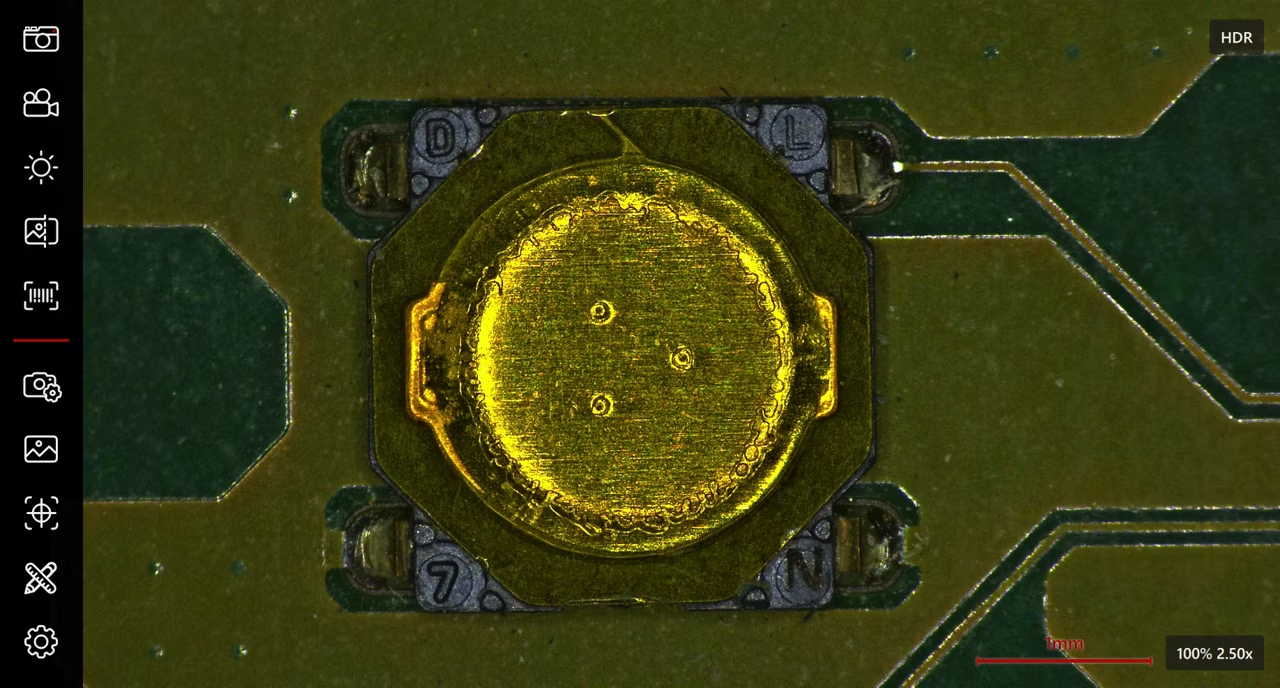
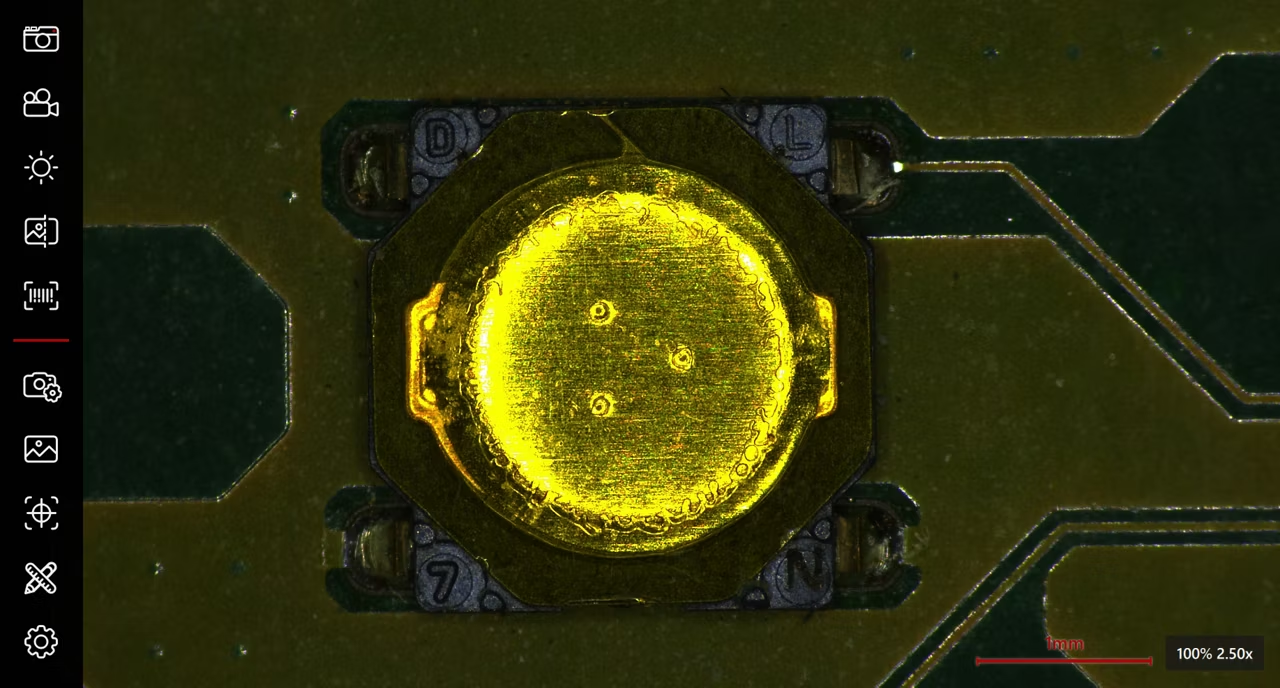
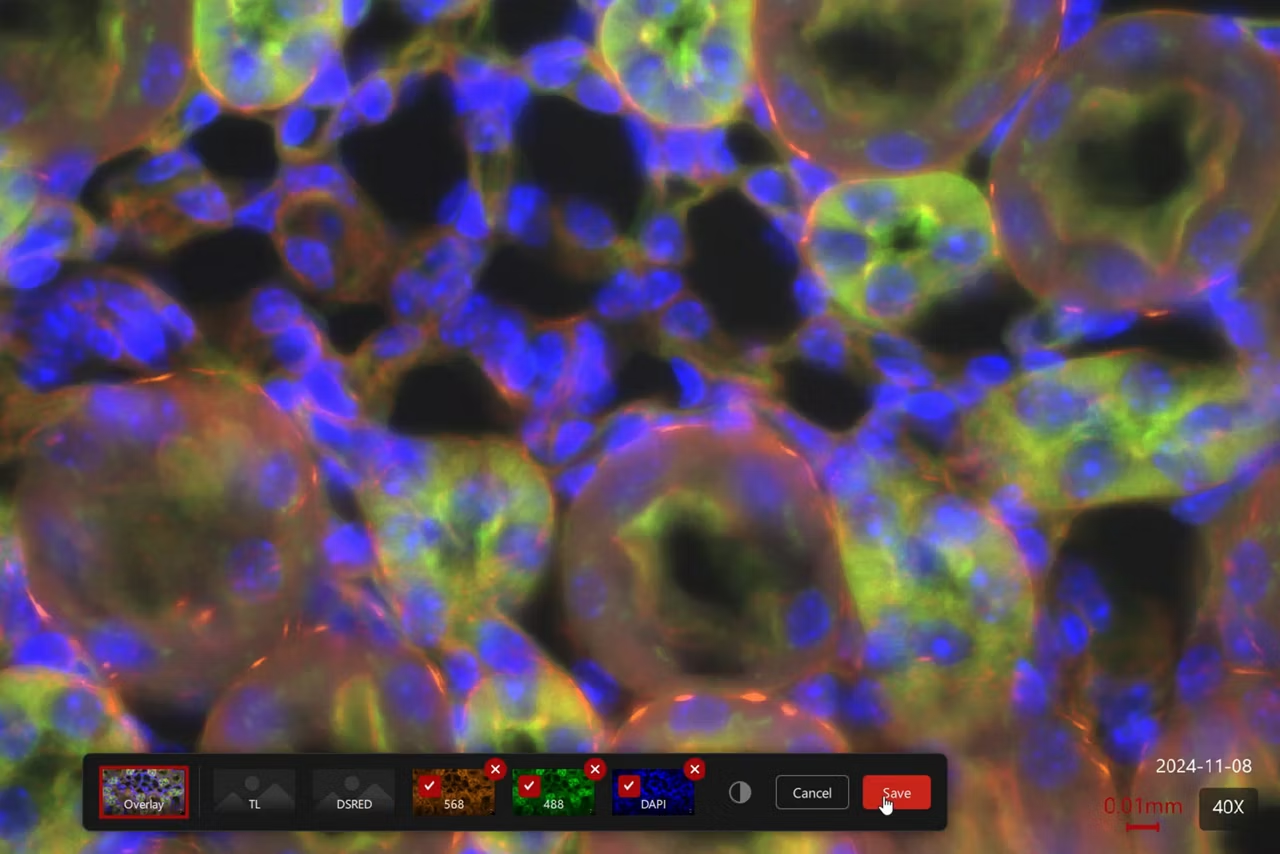
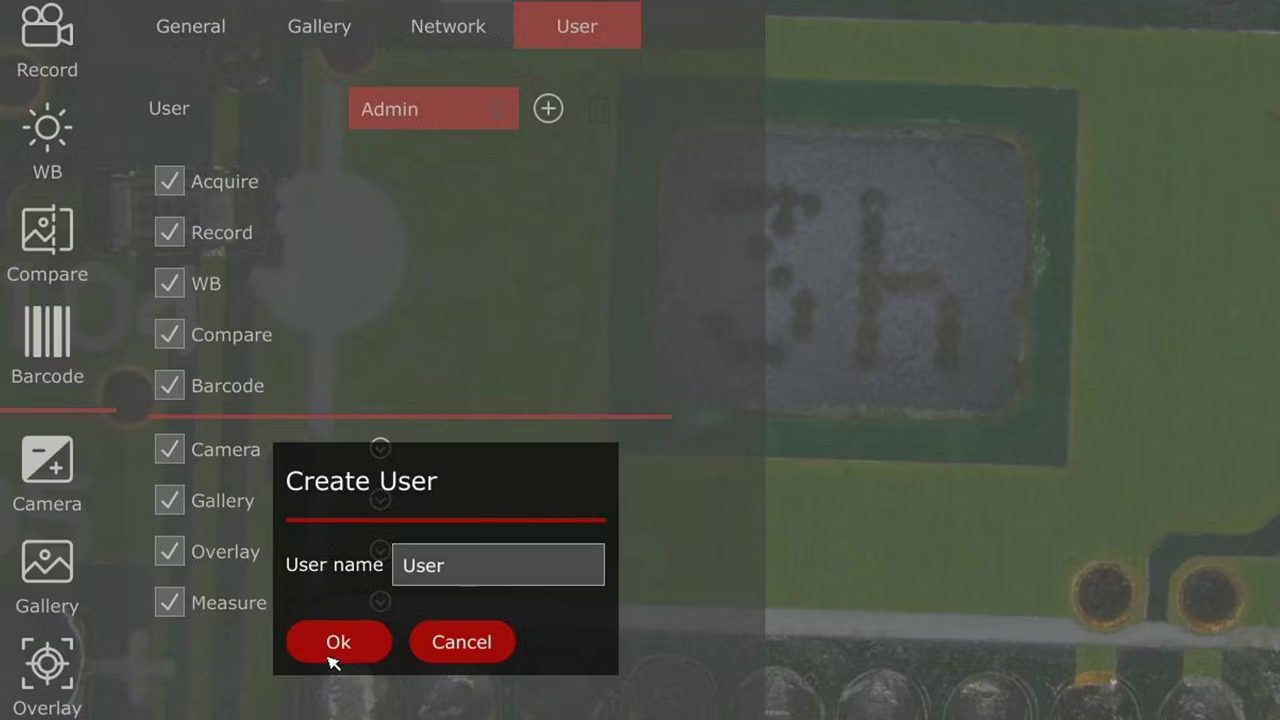
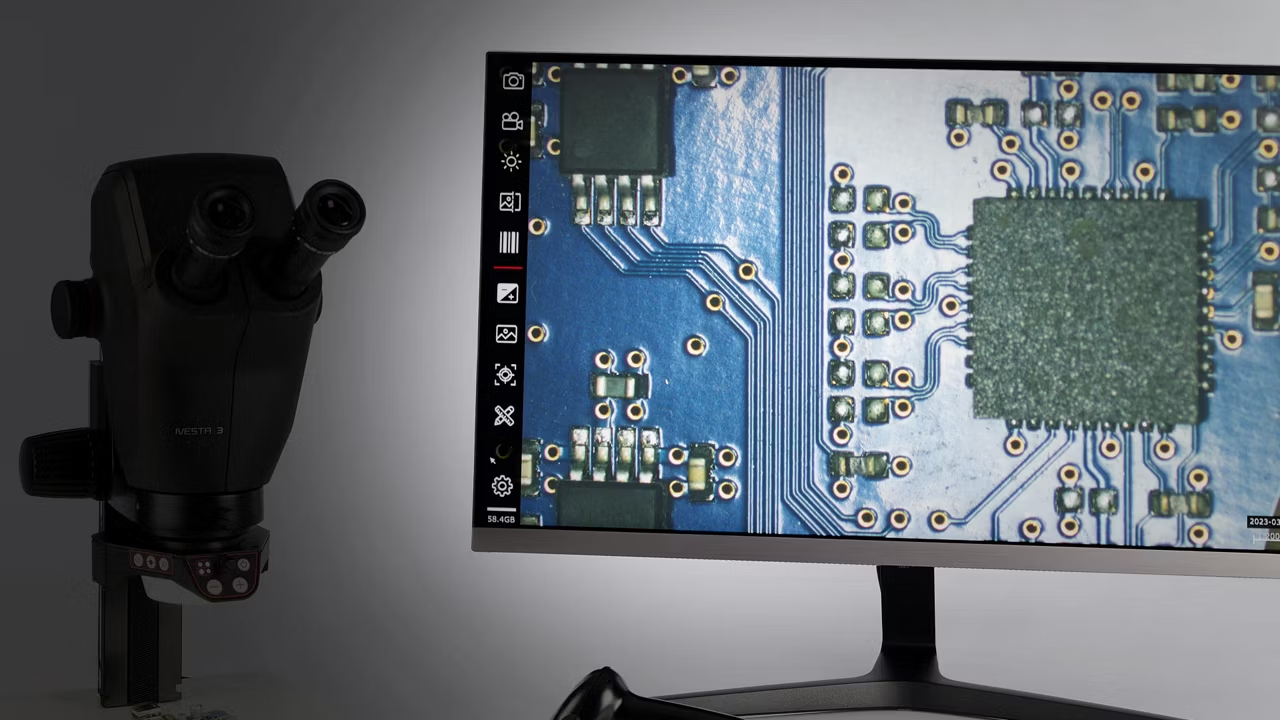
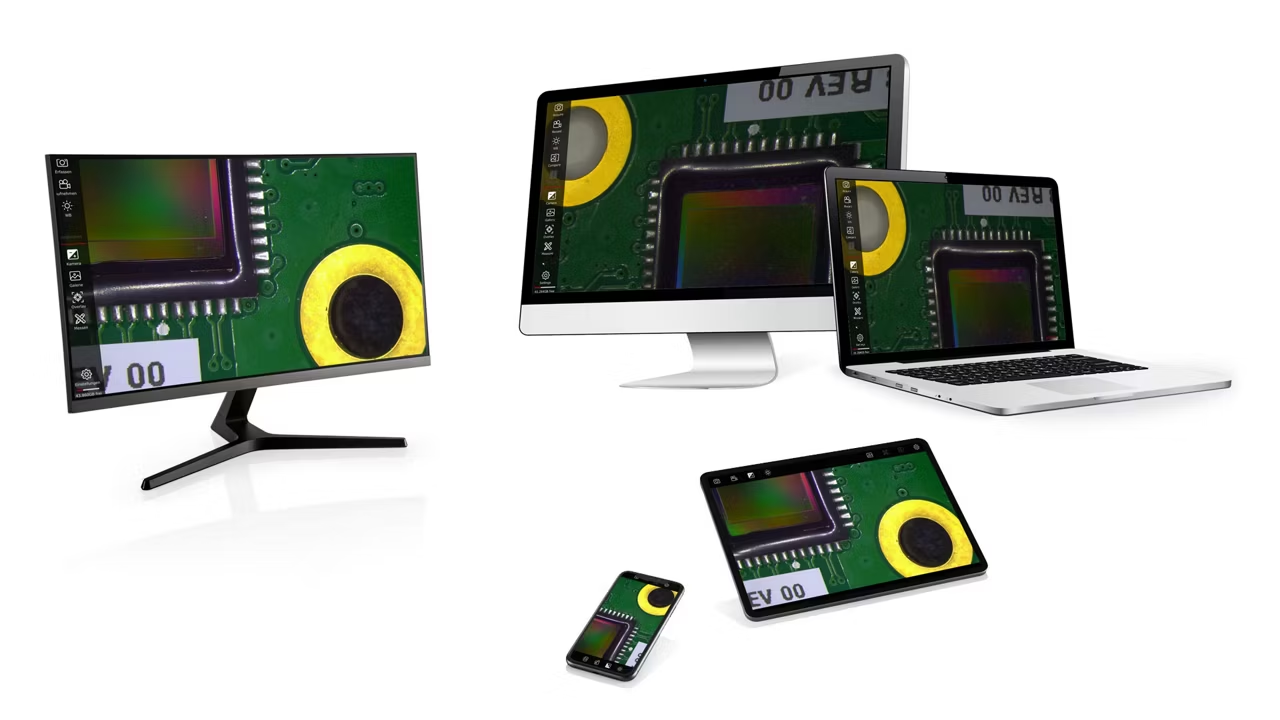

When undertaking routine tasks at your microscope, you don't need the added hassle of trying to navigate different types of software on different workstations.
Whether you work in industry, life sciences or clinical pathology, you can simplify and streamline your image acquisition and documentation workflow with the powerful Enersight software platform.

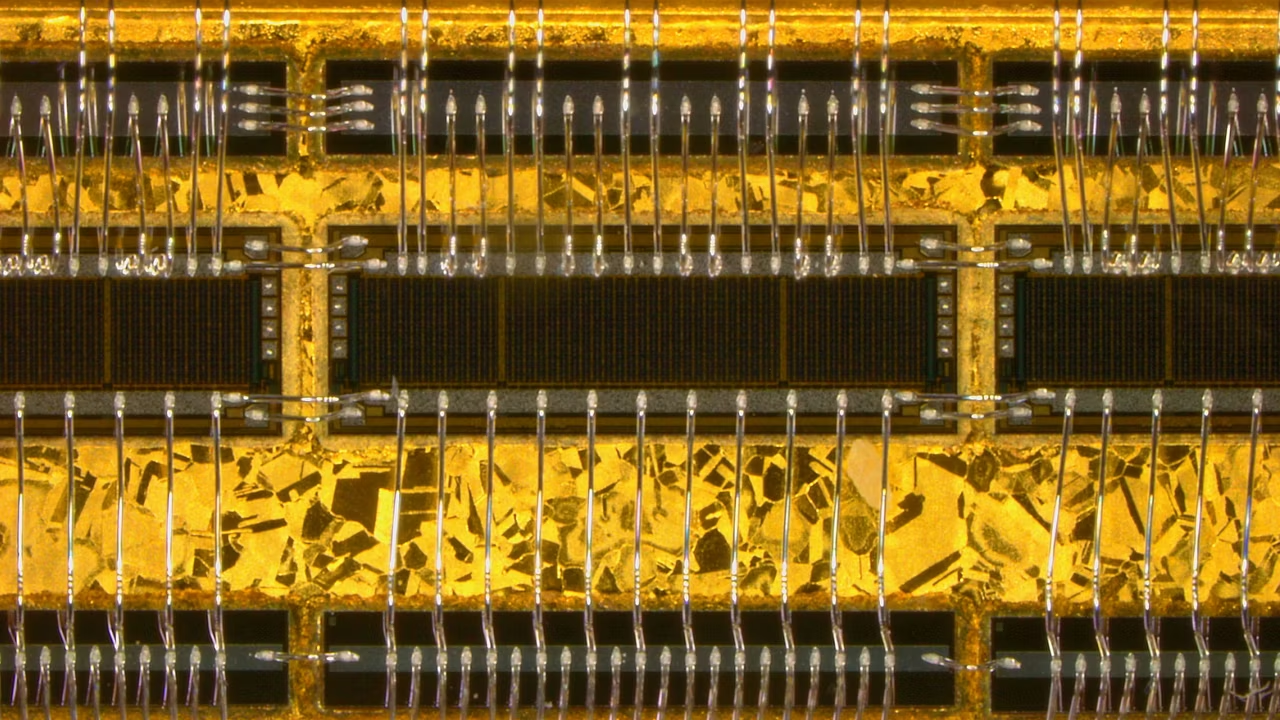
Enersight Extended Depth of Field (EDOF)
Acquire sharp images of your sample with extended depth of field (EDOF). It involves the vertical Z movement of the sample to capture in-focus image information. For each Z position, the software separates sharp focus from out-of-focus regions. A Z-stack of images is acquired and the in-focus areas are combined to make a sharp image.
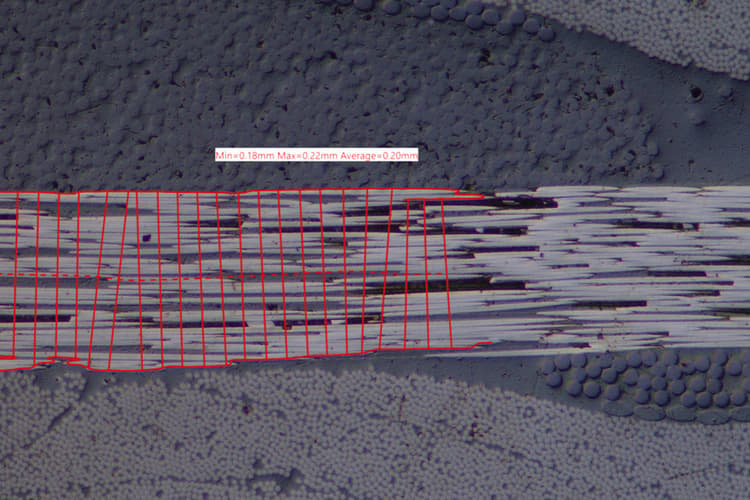
Enersight Layer Thickness
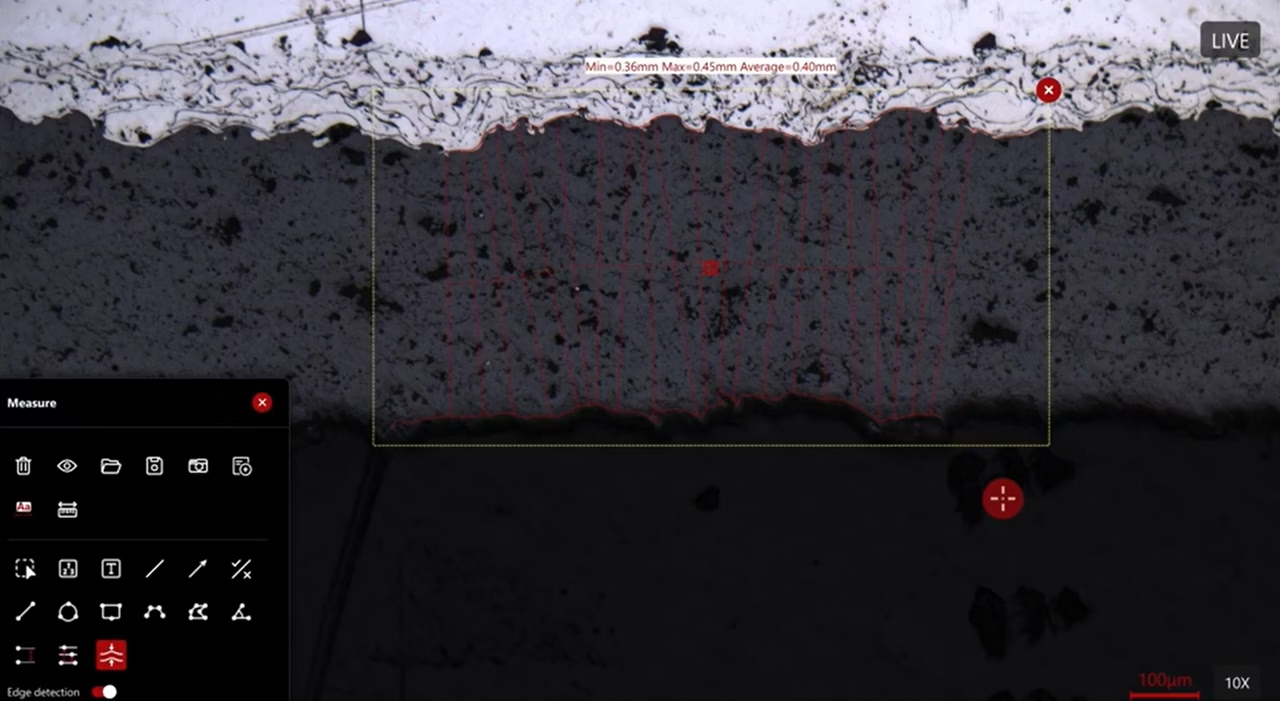
Enersight Layer Thickness: The Enersight Layer Thickness Module is a measurement tool designed for measuring layers and coatings of various materials. It identifies the thickest and thinnest parts of the layer, as well as calculating the average thickness from multiple measurement points.
Enersight XY Stitching
Observe your sample with a larger field of view and higher resolution using the Enersight XY Stitching with Manual Stage function. Multiple images over a region of the sample are captured at higher magnification and stitched together into one, showing a large area with high resolution.
Enersight dongle for optional modules
Dongle option to add additional modules to Enersight Desktop
Work with a single system

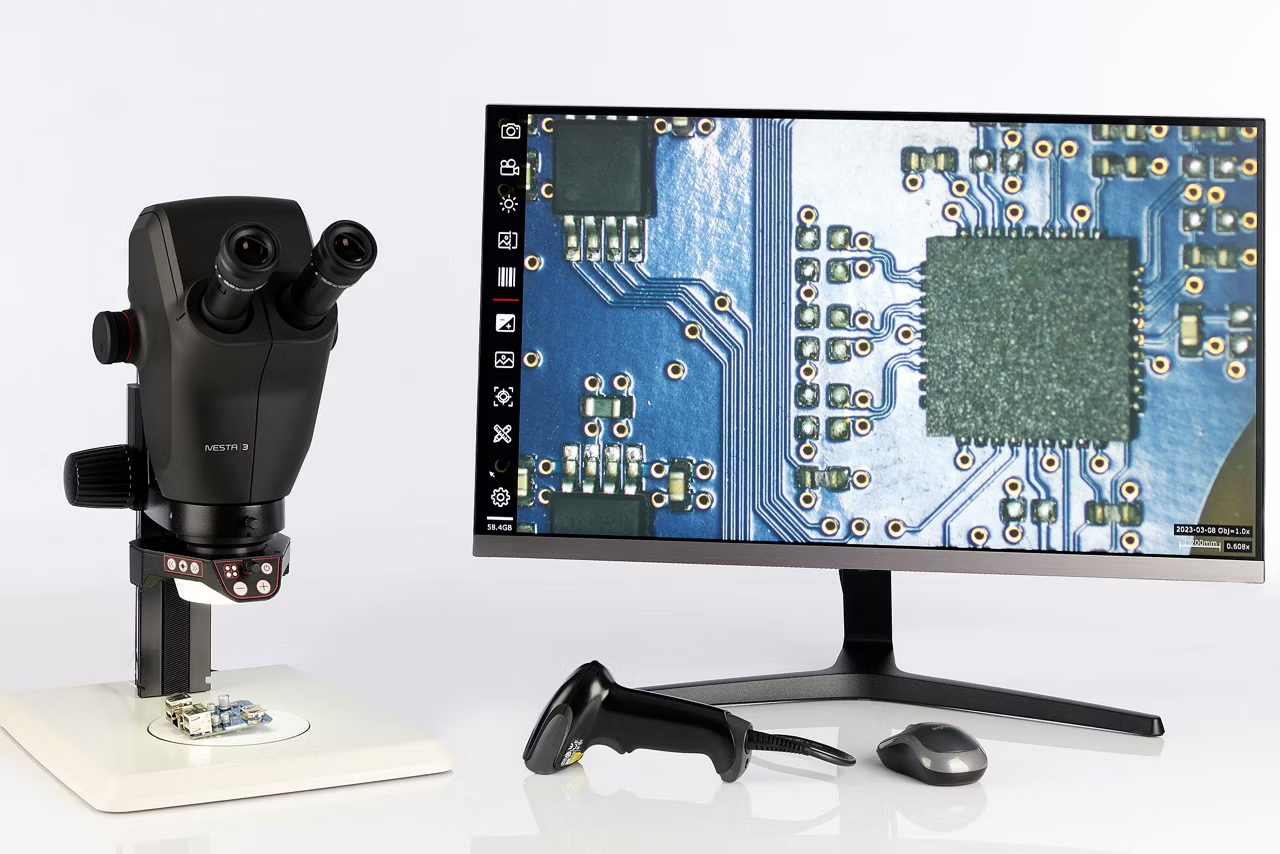
Enersight helps you minimize disruption by performing visual observation, image acquisition, and analysis with a single solution.
- No need to change workstations for a wide range of routine tasks
- Ditch the PC and printed images
Save time with quick sample identification
Reduce errors by using a barcode scanner to record and identify your sample quickly. Record the identifier code with the acquired image to trace it back to your sample.
Identify defects more clearly

Enersight allows you to see details of your sample more clearly:
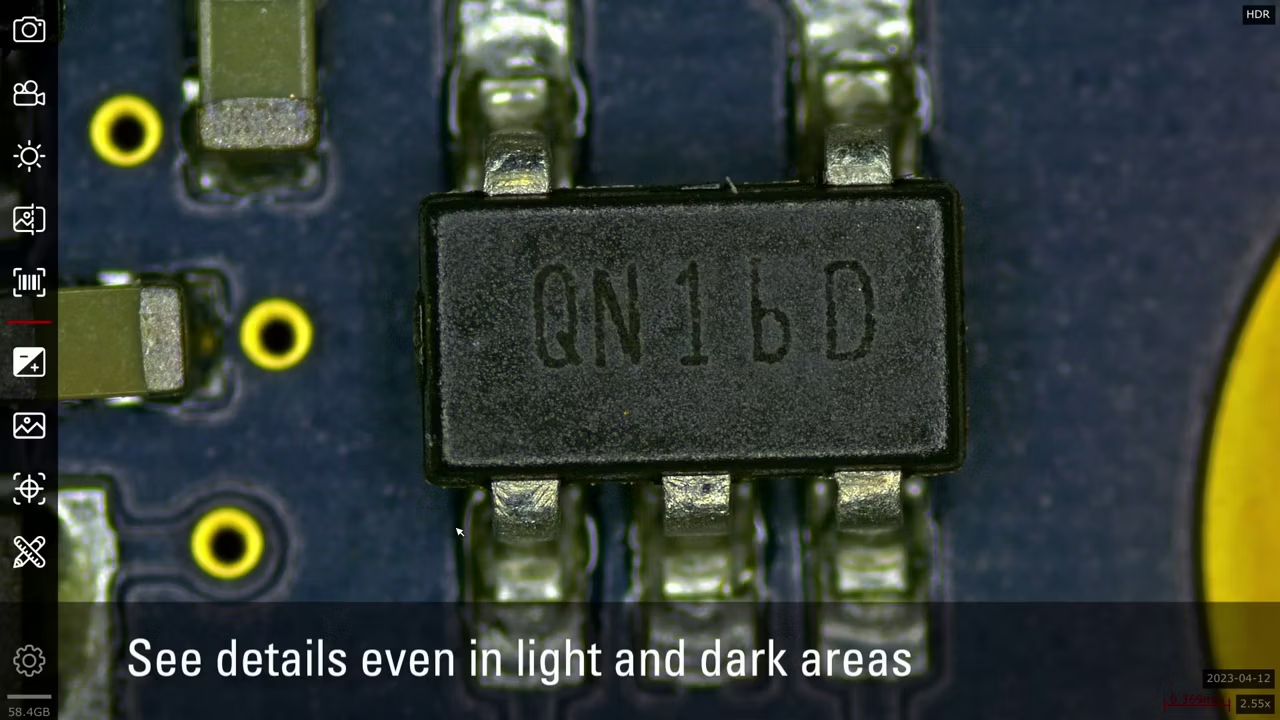
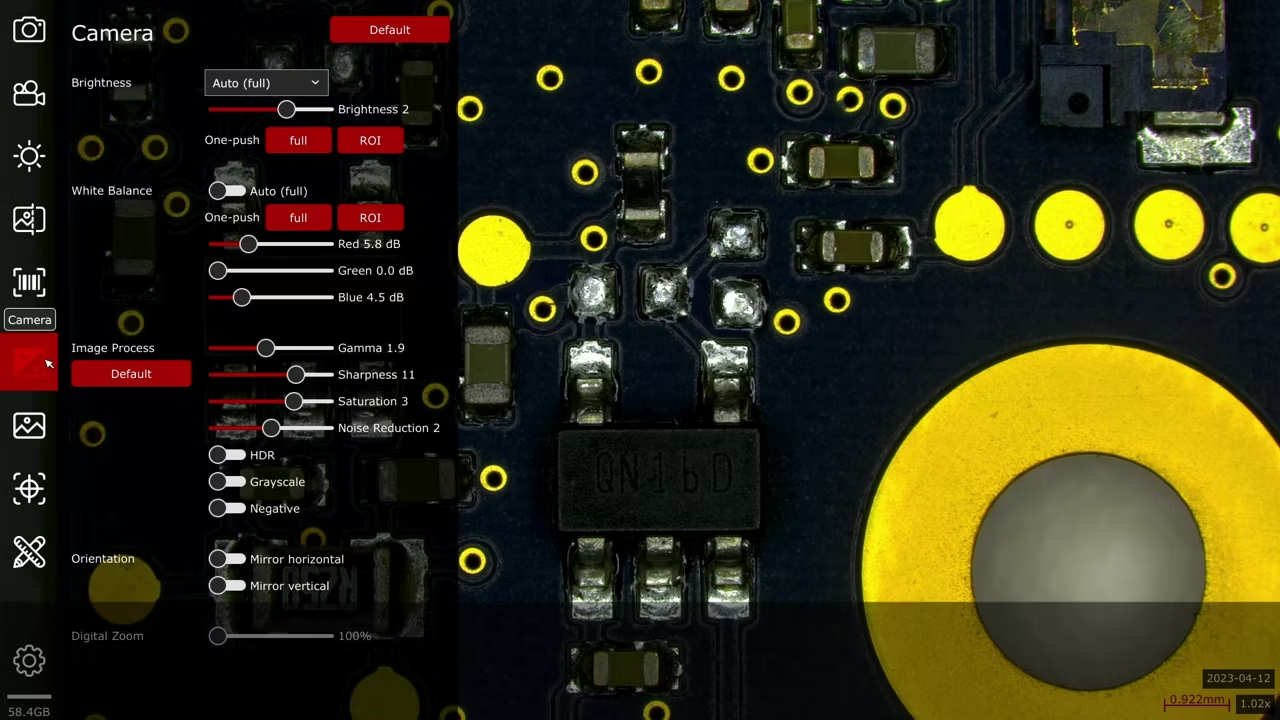
- Capture higher contrast live image with high dynamic range (HDR) live imaging
- Highlight hard-to-see details with negative mode which inverts the colors of your image
Directly compare to references with a single click
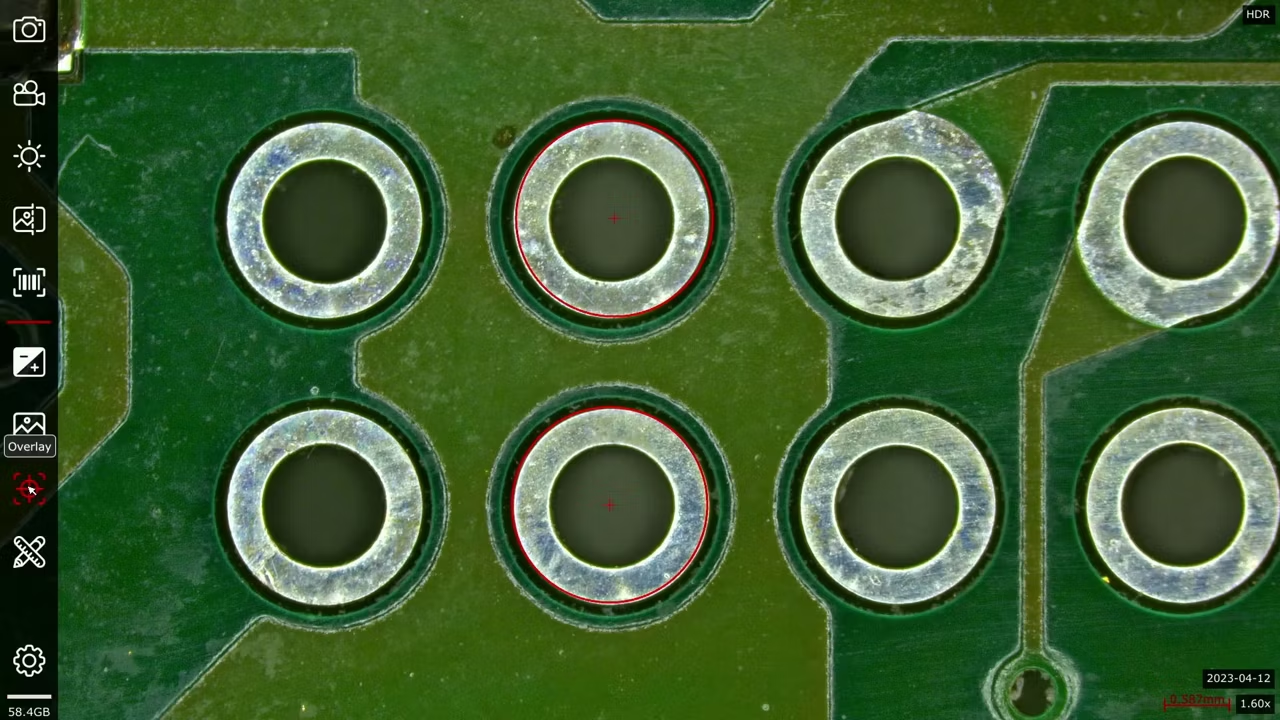
Make pass/fail decisions a breeze by easily comparing live images with reference images and overlays. Enersight allows you to create, store, and share customized overlays, which help assess whether parts or components meet specifications.
Measure during visual inspection – without a PC

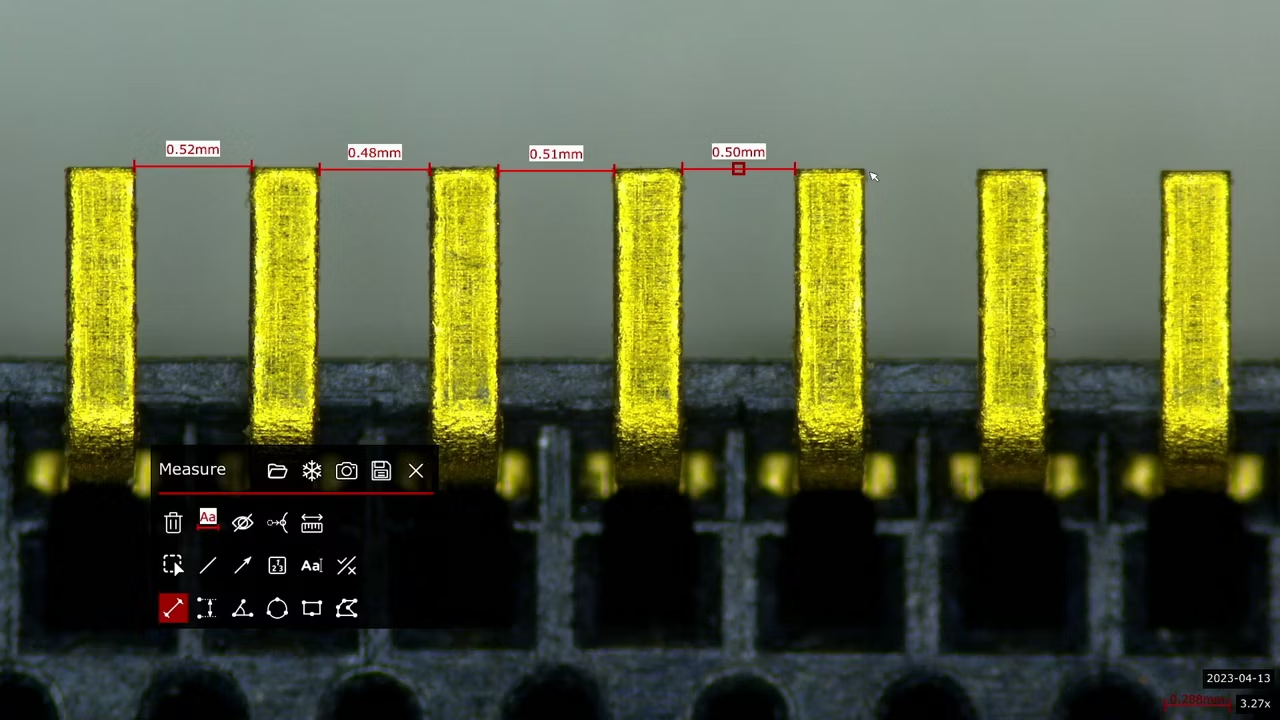
With Enersight, you can measure multiple sample features in the live image and save the results together with the image for documentation.
- Measure between any two points, such as between center points of a circle.
- Use snap to edge assistance for accurate measurements.
- Measure with parallel lines to quickly check distances between sample edges and other features.
- Observe various sample regions at different magnifications, the digital crosshair displayed in the live image scales automatically with the changing image magnification.
- Perform precise, manual grain-size measurements on metal alloys with standard digital reticules. A reticule is displayed in the live image as a reference for measuring.
Consistent operation that saves you time

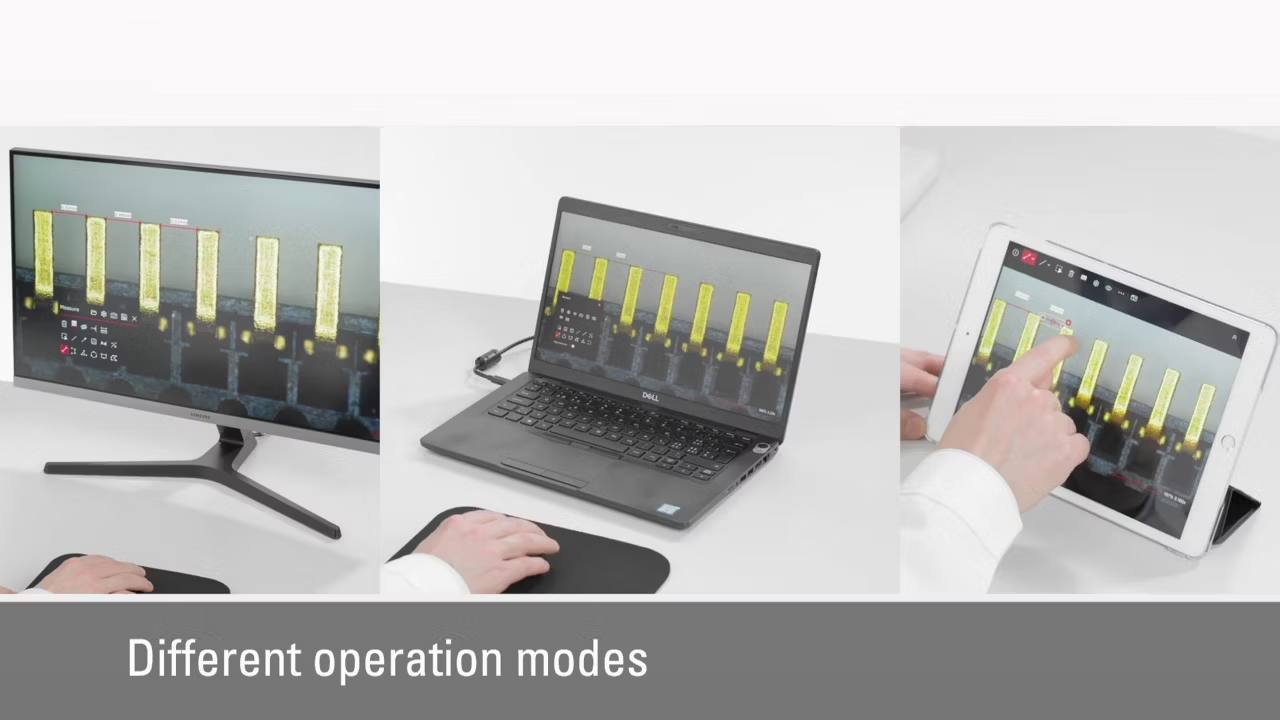
- Enersight's common interface can be used in multiple operation modes, such as the on-screen display (OSD) on your monitor or mobile device, or computer.
- Perform your tasks in a consistent way, independent of the operation mode being used.
- With no differentiation in the user experience across operation modes, the need for training and supervision within your team can be reduced.
Detect burrs with speed and confidence
Boost production by taking the guesswork out of detecting burrs during inspection and quality control. Enersight helps you with automated burr detection, highlighting defects that exceed defined thresholds. Make fast confident pass/fail decisions based on reliable results delivered with a single click.
Key benefits
- Efficient, consistent, and rapid burr detection
- Effortless scaling up of inspections from single samples to full batches
- Streamlined workflows with automated processing and instant reporting.
Just use it - designed for everyone

The Enersight platform is designed so that users of any skill level can intuitively start working with it. Even inexperienced users can operate the system efficiently with minimal training, saving you time and effort.
- The adaptable user interface makes it lean and easy to use
- Customizable interface settings for each user group, e.g., for regulated production environments
Enhance communication for fast decisions

Enersight allows you to save your images directly to predefined network folders and share results with your co-workers via email.
Annotate your images with or without a PC
- Add annotations to your images such as highlights for areas of interest and text-based comments about the sample
- Label your highlighted points with consecutive numbering and organize them in groups
Produce images like a pro

Get crisp images with less manual effort
- Spend less time adjusting white balance and exposure time settings manually, especially for reflective samples.
- The integrated assistant functionalities allow you to get a balanced high-contrast image for your region of interest, irrespective of glare.
- No matter the level of user expertise, images can be obtained easily and fast, thanks to the software’s automatic camera setting adjustments.
Get help with image optimization

- Histogram: Enersight offers you more data to find the right illumination settings by measuring the brightness of your image in a histogram.
- Shading correction: Optimize your images by automatic correction of shading due to uneven illumination.
- Quick brightness function: Get a high-quality sample image with optimal illumination and camera parameters.
- Extended Depth Of Field (EDOF): Acquire sharp images of a sample using the vertical Z movement of the sample to capture a Z-stack of images is acquired and the in-focus areas are combined to make a sharp image.
- 2D stitching: Observe your sample with a larger field of view and higher resolution. Multiple images over a region of the sample are captured at higher magnification and stitched together into one.
- Multi contrast: Merge multiple images from different contrast methods for a better understanding of your sample.
Download Enersight Desktop and Mobile

With the Enersight Desktop and Mobile apps, you can easily carry out your tasks from a computer or mobile device. The Enersight software platform provides a consistent and easy-to-use interface, regardless of the device, helping you and your team take decisions and manage your documentation more easily. Both applications are available free of charge.
Energized for efficiency
Streamline your workflow
Optimize the efficiency of your routine workflow with Enersight, your all-in-one integrated software solution for analysis and data sharing tasks.
Easy access to images for all
Everyone in your team can intuitively use the Enersight software platform to acquire high-quality images, reducing training and supervision time.
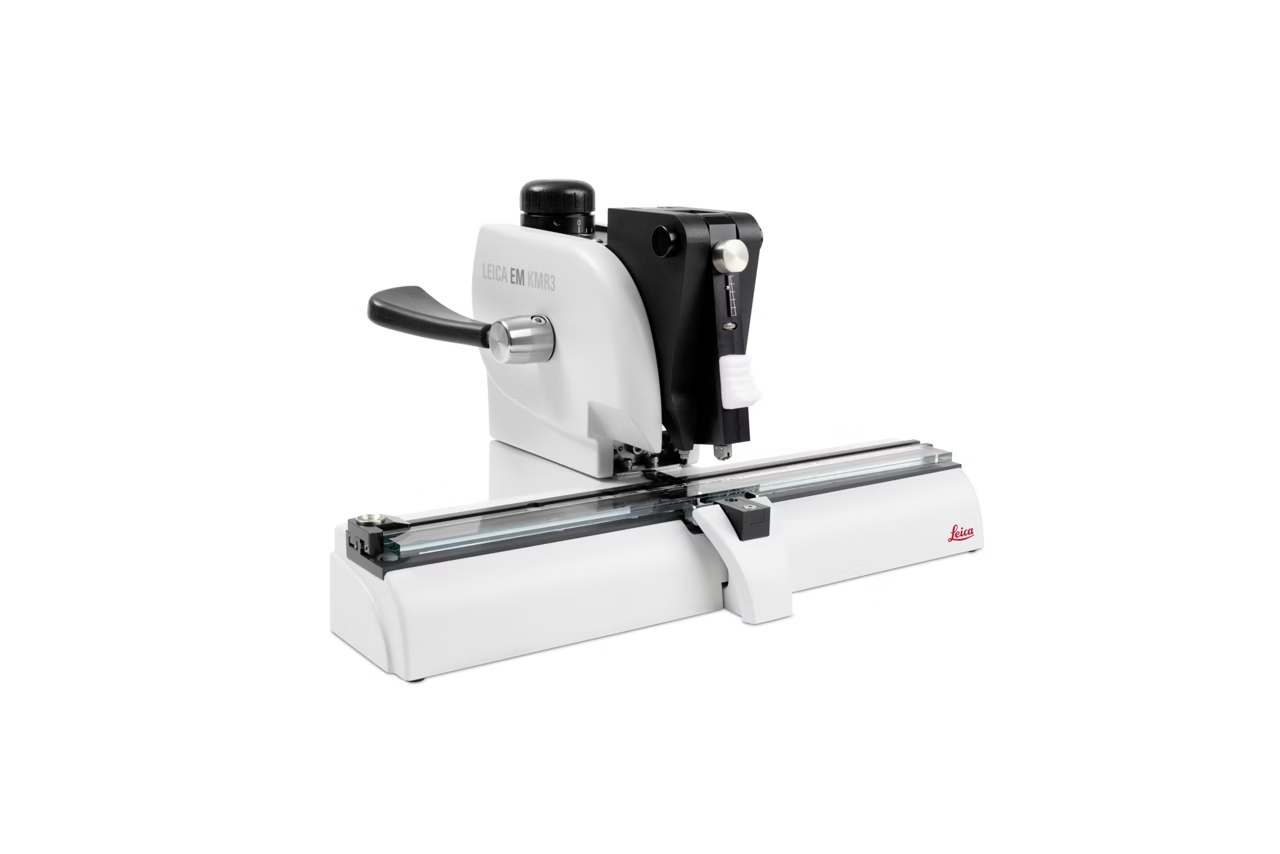
EM KMR3 Glass Knifemaker
Produces perfect glass knives in 6.4 mm, 8 mm and 10 mm thicknesses using the balanced break method for EM and LM applications. Request a quote today.
Visoria P Polarization Microscope
Leica Visoria P Polarization Microscope for investigating birefringent materials with encoded functions and ergonomic design. Request a quote.
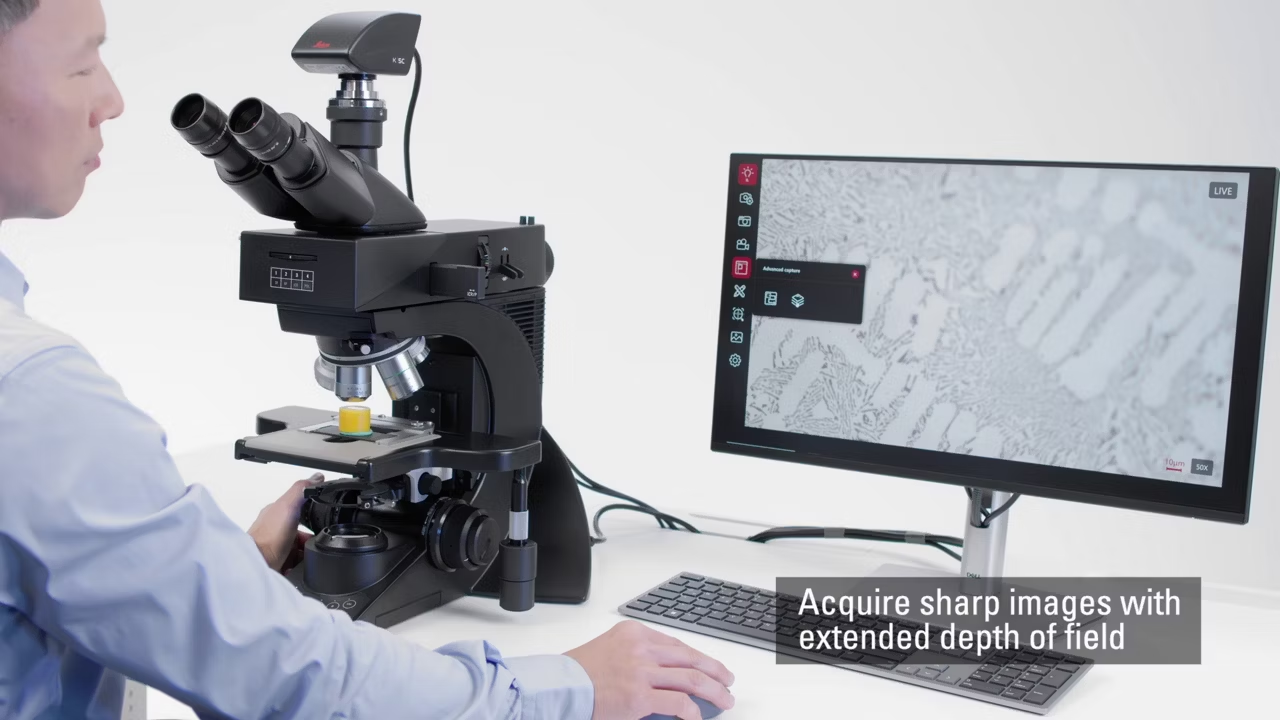
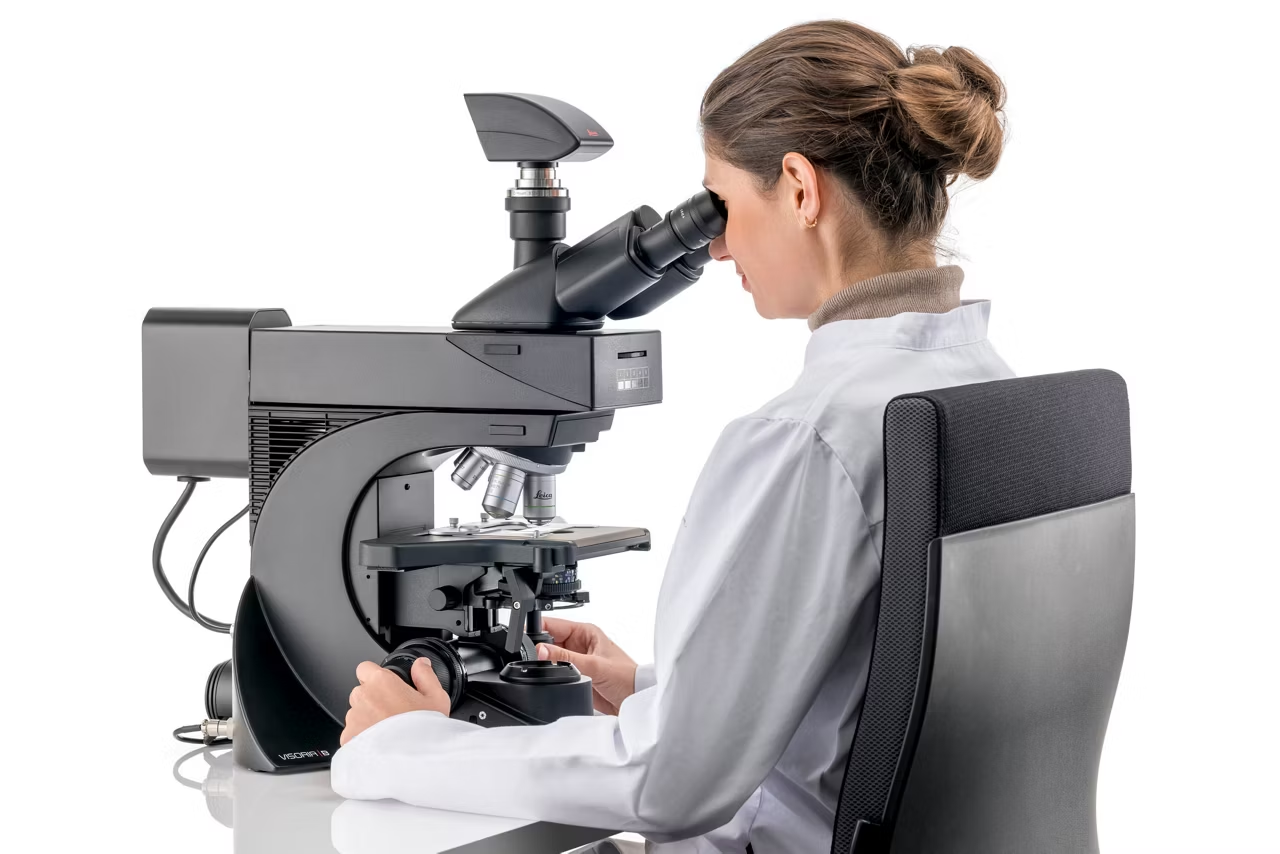
Visoria M Materials Microscope
Visoria M Materials Microscope for high quality microstructure imaging with optimal illumination and camera parameters. Request a quote.
Visoria B Laboratory Microscope
Visoria B Laboratory Microscope for histology pathology and IVD with automated imaging and ergonomic design. Request a quote.
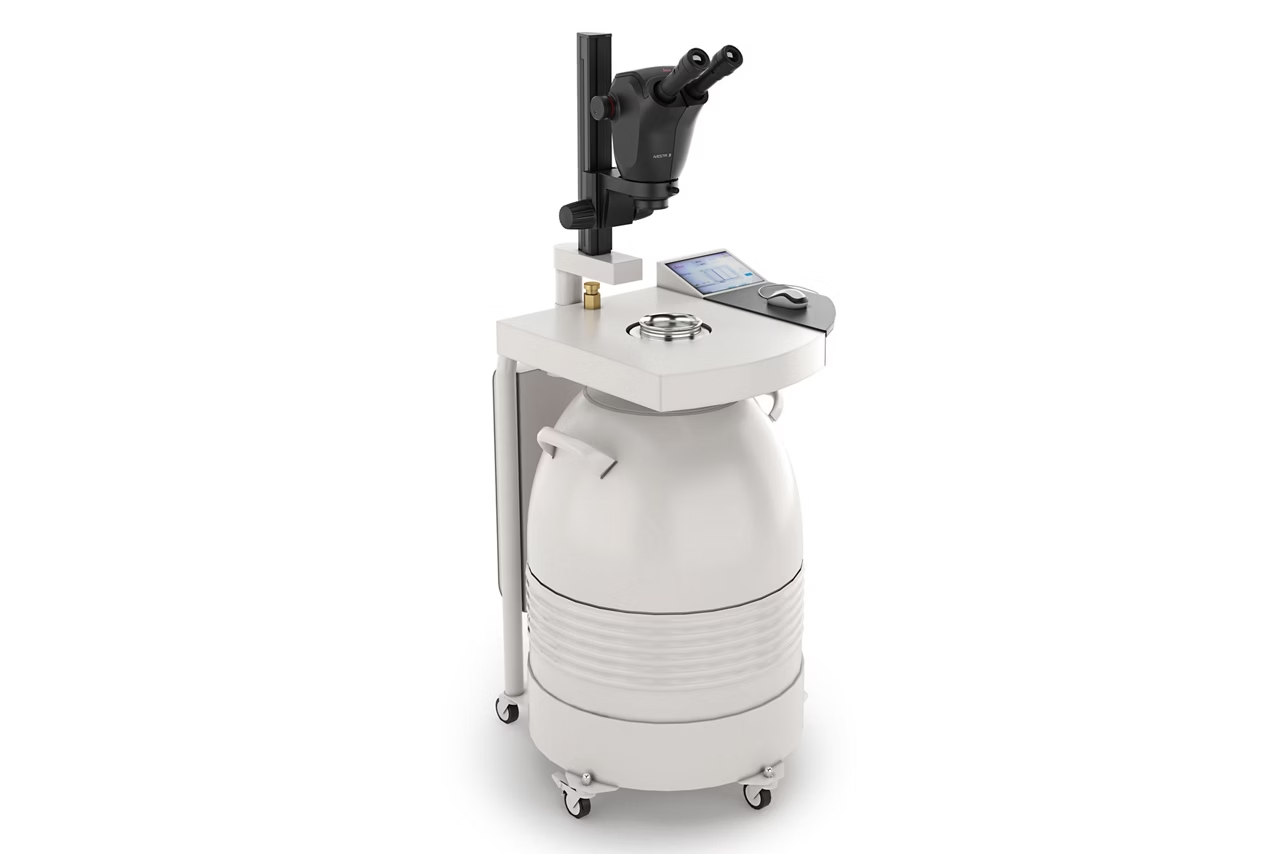
EM AFS2 Freeze Substitution and Low Temperature Embedding System for Light and Electron Microscopy
The EM AFS2 performs freeze substitution, PLT techniques & low temperature resin embedding. Features LED chamber lighting & stereomicroscope. Get quote!
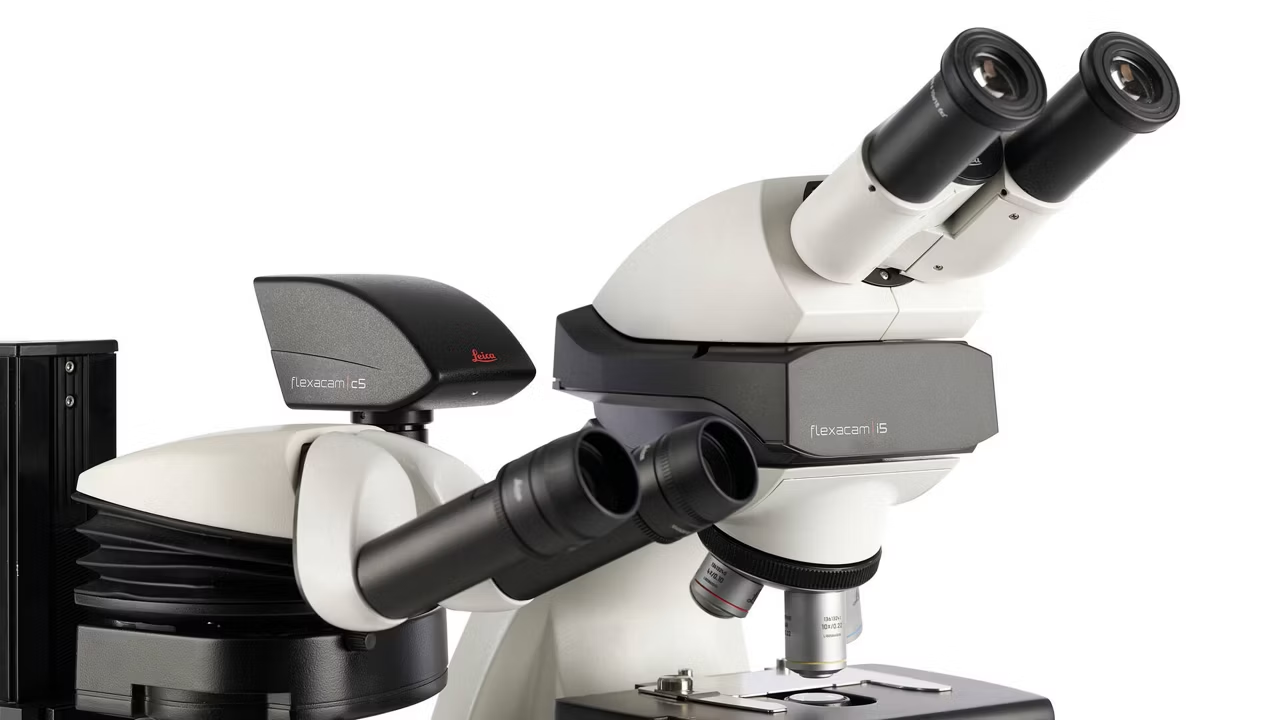
Flexacam c5 & i5 Microscope Cameras
Flexacam c5 and i5 microscope cameras deliver high resolution images with precise colors. Powered by Enersight software for easy use. Request a quote today.
EM TP Automated Tissue Processor
The EM TP automated tissue processor reduces manual handling by 75% ensuring comparable tissue sample results for LM and EM imaging. Request a quote!
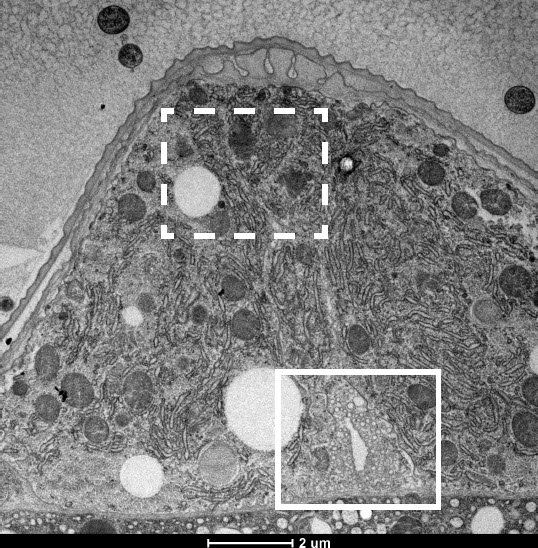
EM ICE Versatile High Pressure Freezing platform
EM ICE high pressure freezing platform enables cryo-immobilization with light and electrical stimulation for electron and correlative microscopy. Get a quote
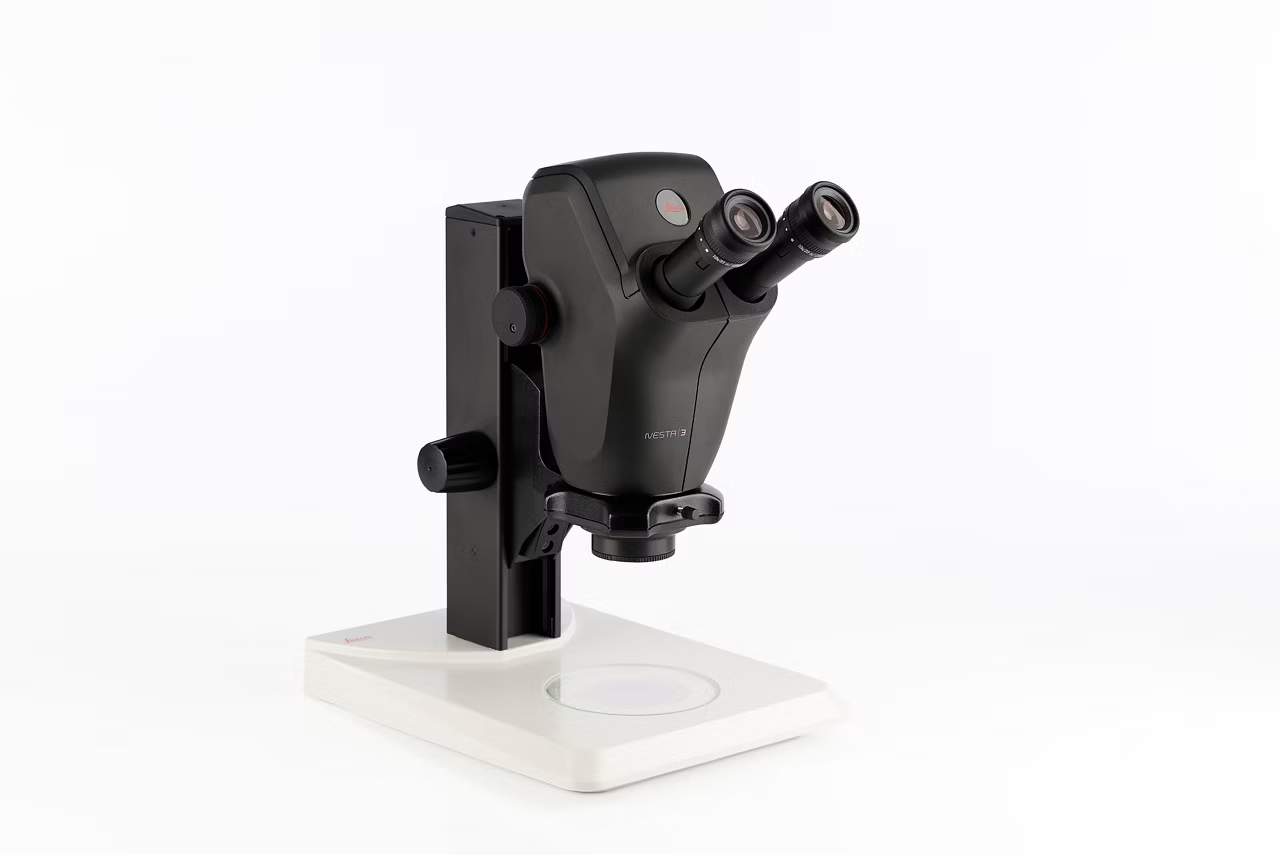
Ivesta 3 Greenough Stereo Microscopes
Explore the Ivesta 3 Greenough Stereo Microscopes, featuring optimal 3D perception, 55x magnification, and 122mm working distance.
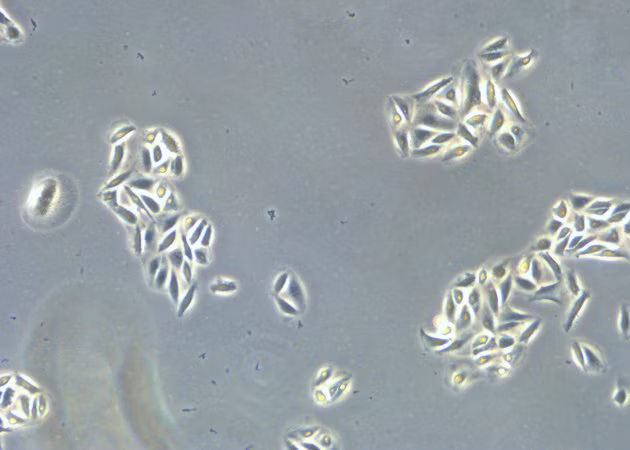
DMi1 Inverted Microscope for Cell Culture
Leica DMi1 inverted microscope for cell culture offers phase contrast, LED light, auto intensity, S40/S80 condensers, and 12MP camera for easy image capture & cell studies. Quote Now
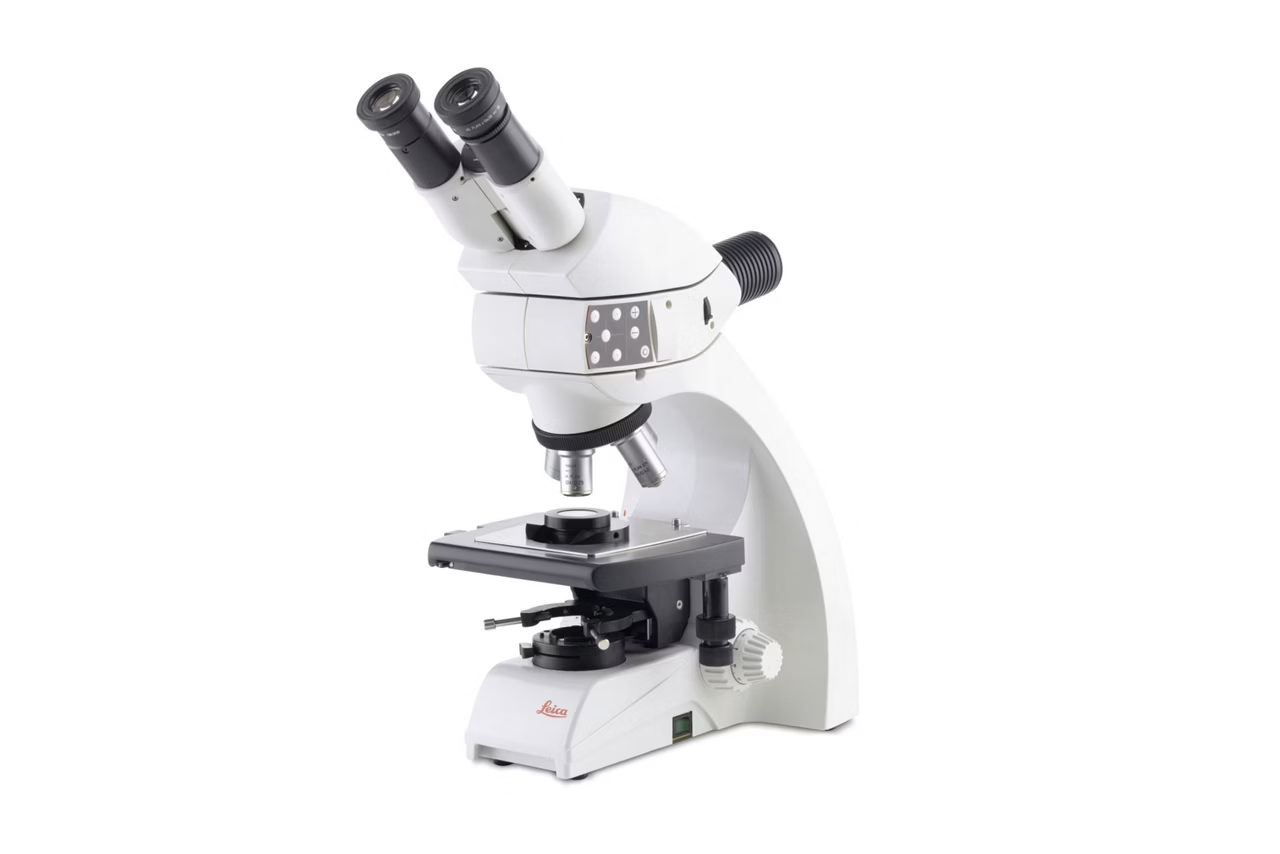
DM750 M Binocular materials microscope for education and metallography
DM750 M binocular microscope features reflected LED illumination and a versatile mechanical stage for materials science and industrial lab use. Get a quote!
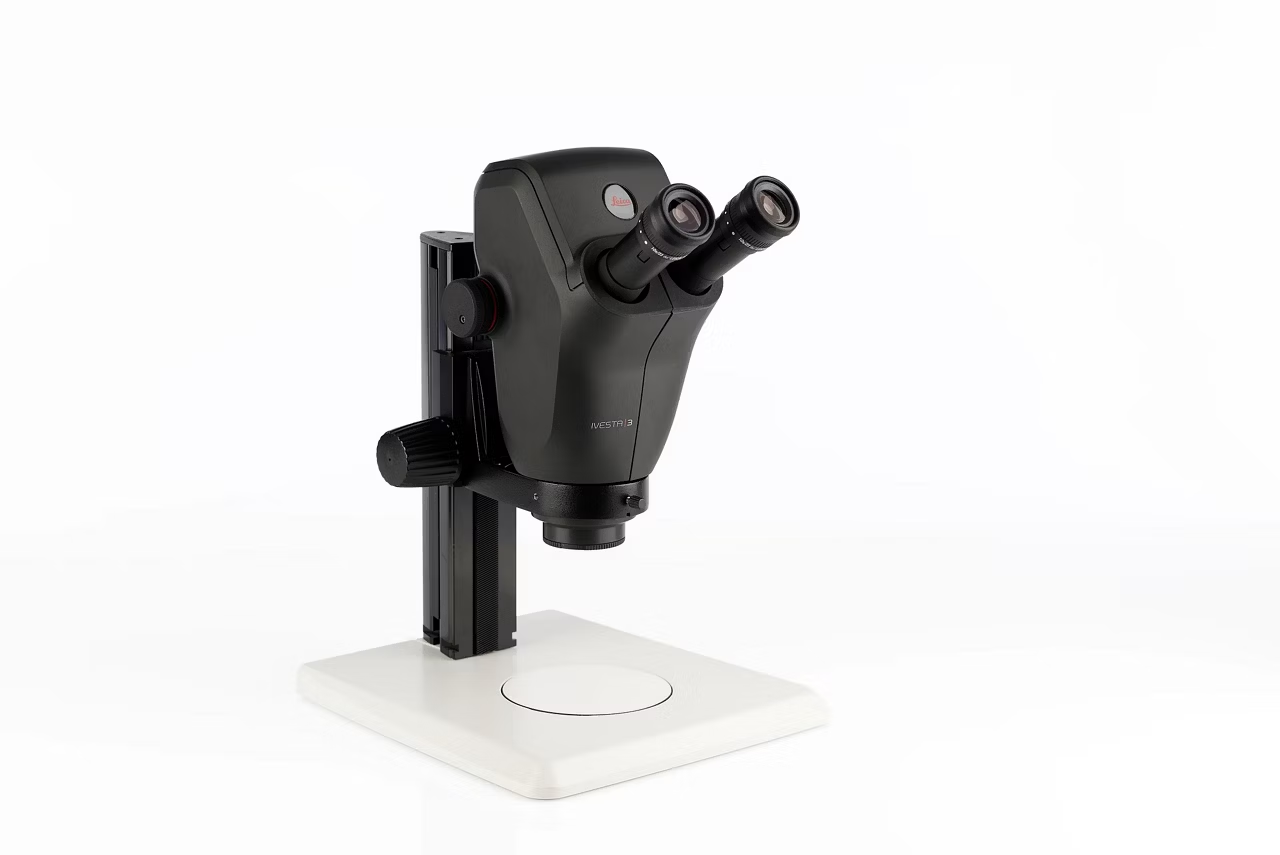
Ivesta 3 Stereo Microscope for Inspection with Integrated Camera
Discover the Ivesta 3, designed for inspection and rework with an integrated camera. Features include 9:1 zoom, 12mm depth of field & high-resolution imaging.
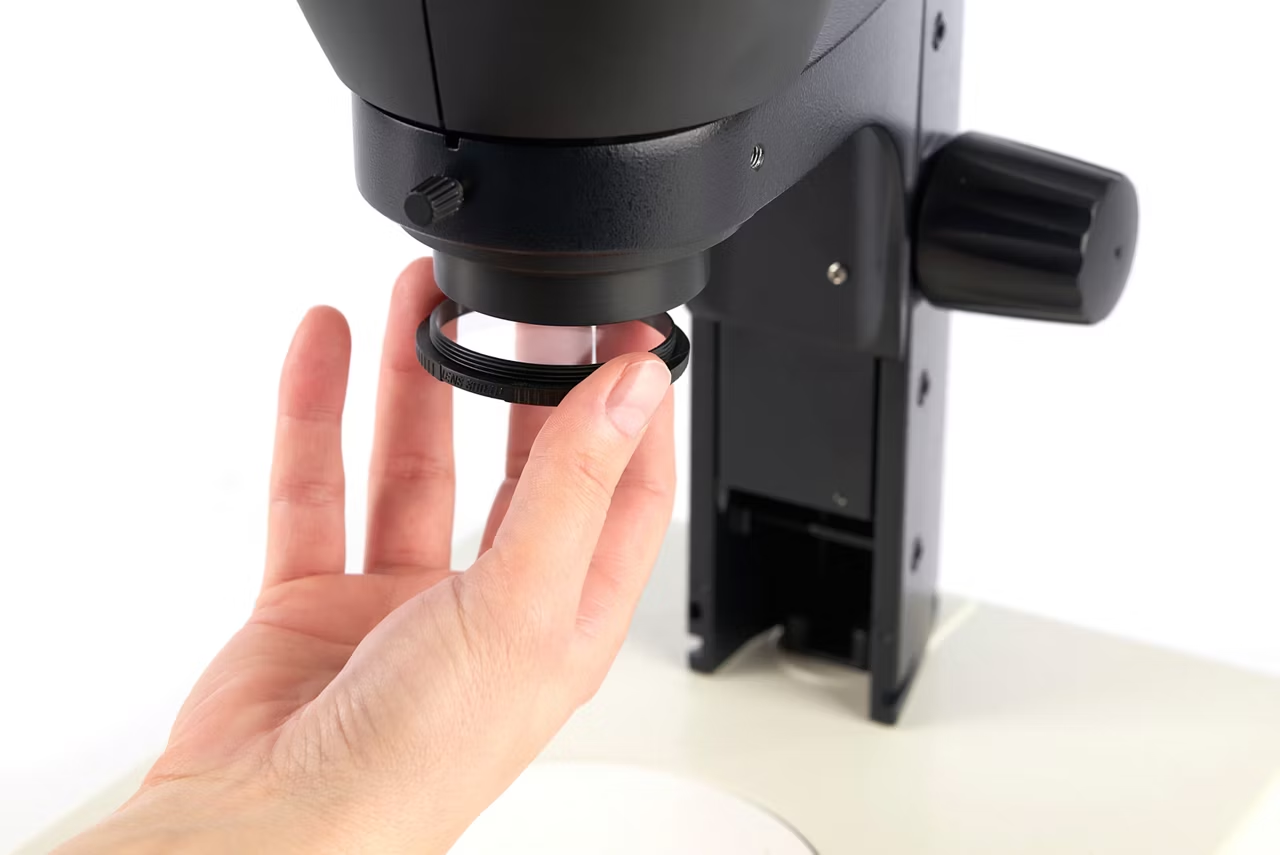
Ivesta 3 for Routine Sorting with Integrated Camera
Ivesta 3 stereo microscope with integrated camera & FusionOptics for high-speed accurate routine sorting and documentation in lab and industrial settings.
Ivesta 3 Stereo Microscope for Inspection with Integrated Camera
Discover the Ivesta 3, designed for inspection and rework with an integrated camera. Features include 9:1 zoom, 12mm depth of field & high-resolution imaging.
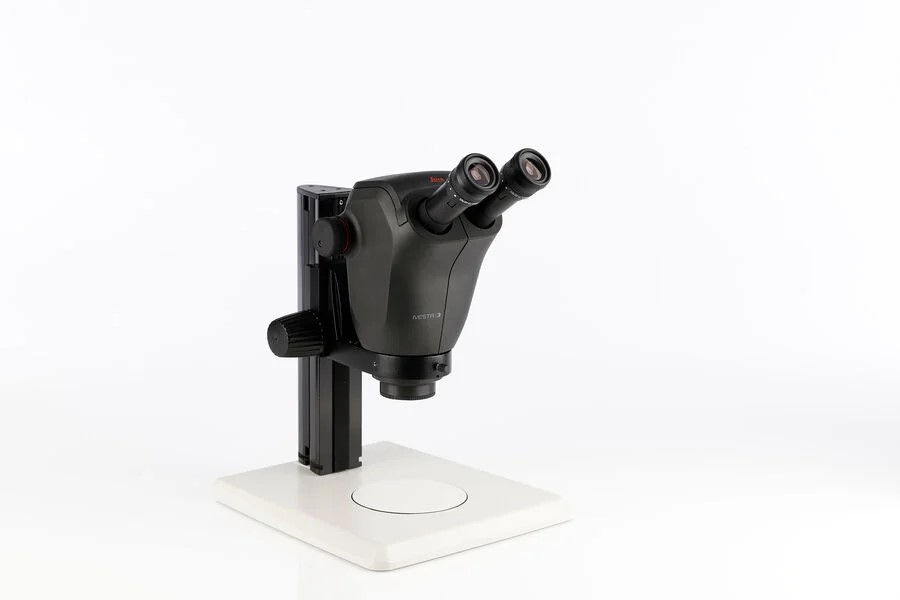
Ivesta 3 Stereo Microscope for Inspection
Designed for professionals, this microscope offers superior optics, ensuring unparalleled clarity in detailed work. Its ergonomic design and advanced features make it an indispensable tool for professionals engaged in inspection and rework applications.
Ivesta 3 for Routine Sorting with Integrated Camera
combining precision optics with user-friendly features. This microscope not only offers exceptional clarity and ease of use but also includes an integrated camera for documentation purposes. With advanced capabilities and convenient documentation features
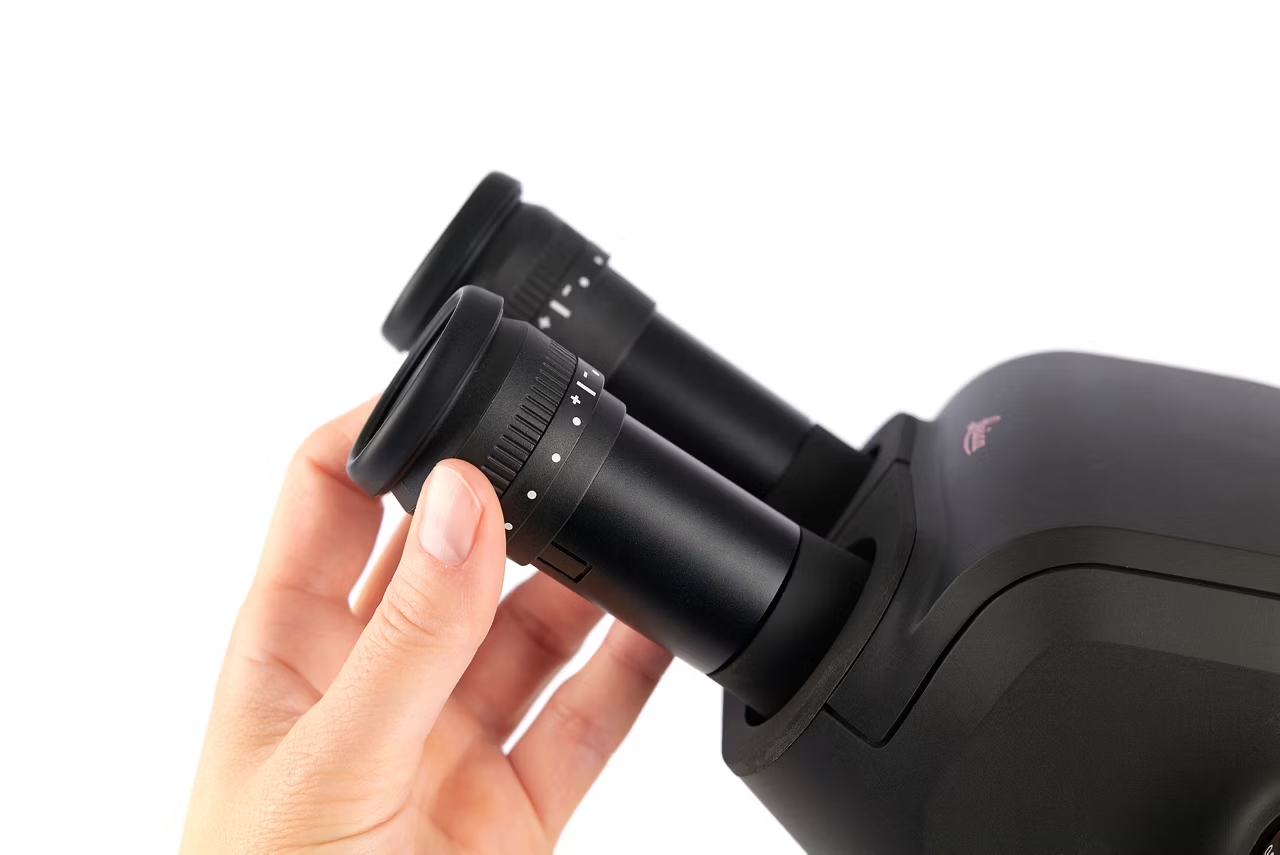
Ivesta 3 for Routine Sorting
Engineered with precision optics and user-friendly features, this microscope offers exceptional clarity and ease of use. With its advanced capabilities, the Ivesta 3 streamlines routine sorting processes, providing researchers and professionals with a reliable and efficient tool for daily laboratory tasks.
Ivesta 3 for Sample Sorting (e.g. Drosophila)
This microscope not only offers exceptional clarity and ease of use but also includes an integrated camera for documentation purposes. With advanced capabilities and convenient documentation features, the Ivesta 3 streamlines routine sorting processes, providing researchers and professionals with a reliable and efficient tool for daily laboratory tasks.
Ivesta 3 for Routine Sorting
Engineered with precision optics and user-friendly features, this microscope offers exceptional clarity and ease of use. With its advanced capabilities, the Ivesta 3 streamlines routine sorting processes, providing researchers and professionals with a reliable and efficient tool for daily laboratory tasks.
Ivesta 3 for Routine Sorting with Integrated Camera
combining precision optics with user-friendly features. This microscope not only offers exceptional clarity and ease of use but also includes an integrated camera for documentation purposes. With advanced capabilities and convenient documentation features
Ivesta 3 for Sample Sorting (e.g. Drosophila)
This microscope not only offers exceptional clarity and ease of use but also includes an integrated camera for documentation purposes. With advanced capabilities and convenient documentation features, the Ivesta 3 streamlines routine sorting processes, providing researchers and professionals with a reliable and efficient tool for daily laboratory tasks.
Ivesta 3 Stereo Microscope for Inspection
Designed for professionals, this microscope offers superior optics, ensuring unparalleled clarity in detailed work. Its ergonomic design and advanced features make it an indispensable tool for professionals engaged in inspection and rework applications.
Ivesta 3 Stereo Microscope for Inspection with Integrated Camera
Discover the Ivesta 3, designed for inspection and rework with an integrated camera. Features include 9:1 zoom, 12mm depth of field & high-resolution imaging.
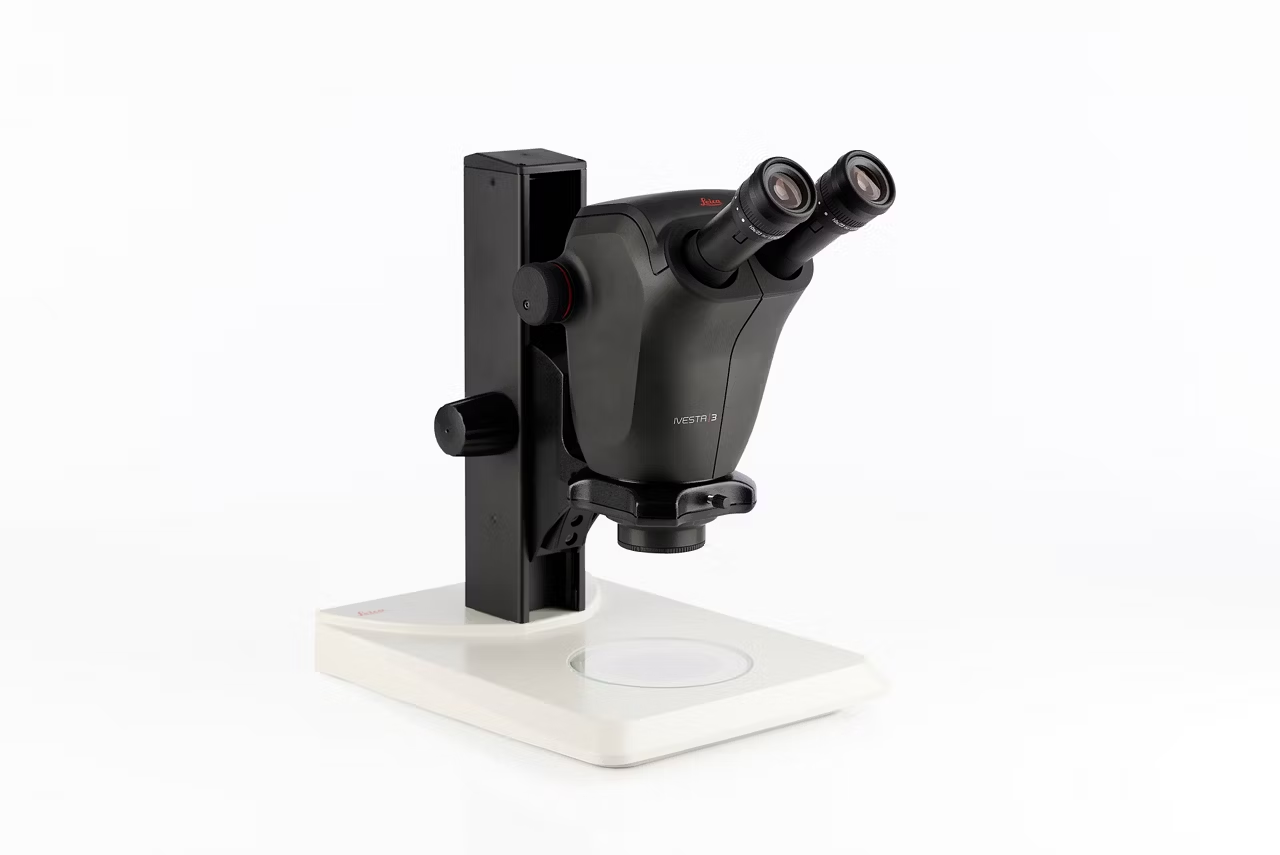
Ivesta 3 for Routine Sorting
The Ivesta 3 stereo microscope is an ideal solution for routine sorting applications